EchoRewards
  • Features
  • Pricing
  • Products
  • Help Center
  • Roadmap
Join Community
  • Get Started Now
  • Join Community Get Started Now
    • Referral Coupon Generation
    • Coupon Customization
    • Email Customization
    • Floating Referral Widget
    • Reporting and Analytics
    • WP Dark Mode
      WP Dark Mode

      A stunning WordPress Dark Mode experience

    • FlexTable
      FlexTablehot HOT

      Automatically sync Google Spreadsheets with WP tables

    • FormyChat
      FormyChat

      Send contact form leads to WhatsApp

    • FlexStock
      FlexStock hot Hot

      Sync WooCommerce stock with Google Sheet and manage easily

    • FlexOrder
      FlexOrder new ⚡

      Manage WooCommerce orders from Google Sheets

    • Easy Video Reviews
      Easy Video Reviews

      Get powerful video testimonials with ease and boost sales

    • EchoRewards
      EchoRewards new ⚡

      Referral Plugin for WooCommerce

    • Jisi Meet
      FlexMeeting

      Webinar & video conferences within WordPress

    • FlexSync for Shopify
      FlexSync for Shopify new ⚡

      Manage Shopify inventory from Google Sheets

    • ArchiveMaster
      ArchiveMaster new ⚡

      Speed up your WooCommerce store by archiving old orders.

    • OMG Chat Widgets
      OMG Chat Widget

      Let customers contact via any social channel

    • Stock Notifier
      Stock Notifier for WooCommerce

      Send alerts to customer when product is back in stock

    • Docs
    • Blogs
    • Video Tutorials
    • What's new?
    • 🗂️ WooCommerce Glossary
    • FAQ
    • DreamLab Hire us!
    • Join Community
    • Support & Contact

    EchoRewards Docs

    20
    • How to get started with EchoRewards
    • How to configure the referral coupon settings
    • How to configure the reward coupon settings
    • How to send referral coupons via email
    • How to send reward coupons via email
    • How to share referral coupons with friends
    • How to enable/disable the floating referral widget
    • How to show or hide the WooCommerce referral tab on your store
    • How to set a discount cap
    • How to include/exclude referral coupons on products/categories
    • How to use EchoRewards Gutenberg block and Elementor referral widget
    • How to use EchoRewards referral shortcodes
    • How to use EchoRewards with WPFunnels & FunnelsKit
    • How to configure recurring discounts with EchoRewards
    • How to change ‘Menu name’ and ‘Icon’ in My Account Page
    • How to Use the EchoRewards Reward Management Dashboard
    • How to Customize Reward Coupons for Individual Customers in EchoRewards
    • How to Give Custom Reward Points to Specific Customers using EchoRewards
    • How to Customize Referral Rules Per Customer in EchoRewards
    • Apply Recurring Reward Coupons to Active, Existing, or New Subscriptions

    EchoRewards

    1
    • 📚 How to Translate Any String in EchoRewards (Using Loco Translate)
    • Home
    • Docs
    • EchoRewards Docs
    • How to use EchoRewards referral shortcodes
    View Categories

    How to use EchoRewards referral shortcodes

    EchoRewards offers various referral Shortcodes to display different features of your referral program, such as referral cards, email invites, reward coupon tables, and invitation tracking tables.

    To use EchoRewards shortcodes, navigate to WordPress Dashboard > EchoRewards > Shortcodes & Widgets.
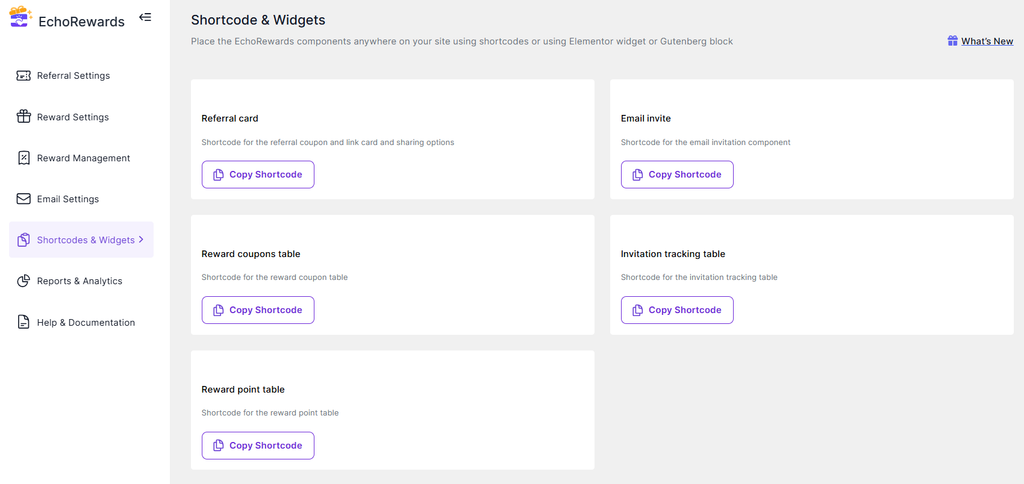
    Then copy the preferred shortcode by clicking on the “Copy Shortcode” Button.
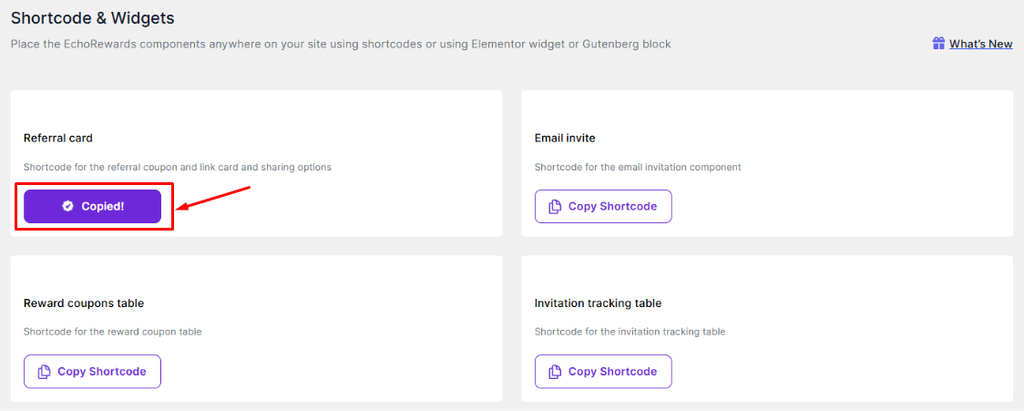
    Now navigate to the page or post where you want to display the referral program elements.

    Using EchoRewards Shortcode in Gutenberg Block: #

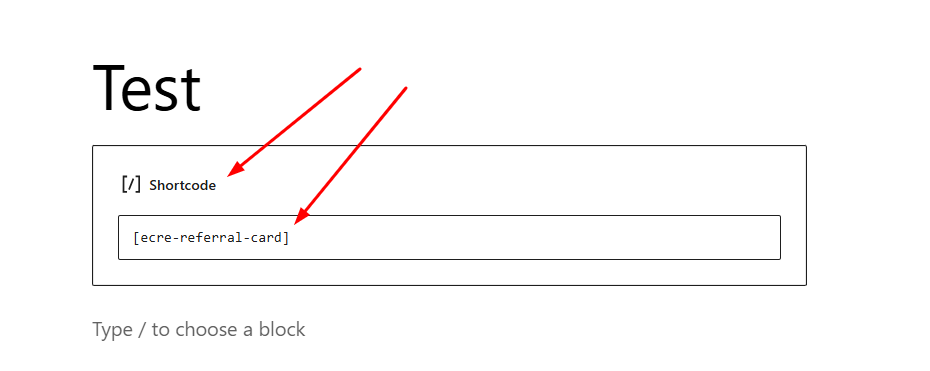
    Open the post or page in the Gutenberg editor where you want to add the shortcode. Add a new block by clicking the “+” icon and search for the “Shortcode” block.
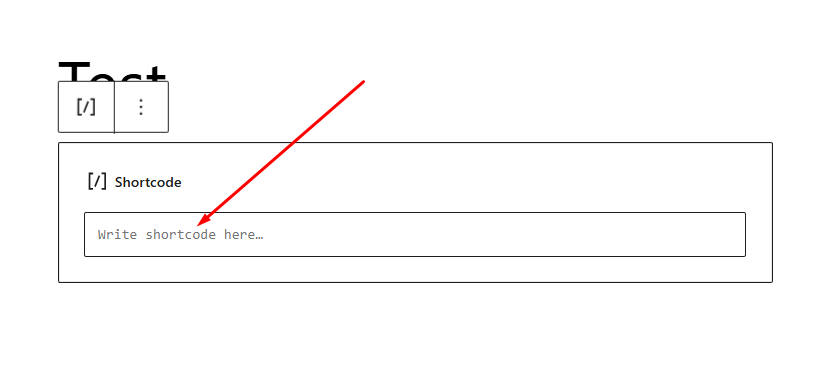
    Select the “Shortcode” block from the available blocks and Insert the copied EchoRewards shortcode into the “Shortcode” block.
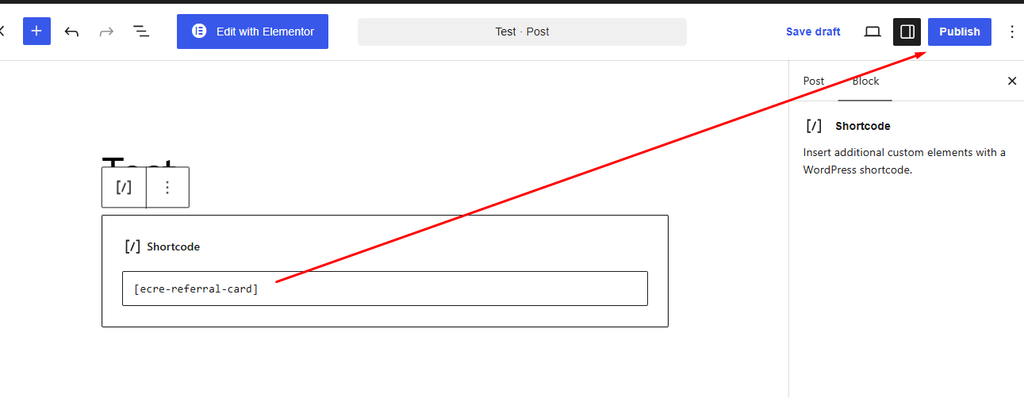
    Save or update the post/page to see the changes.
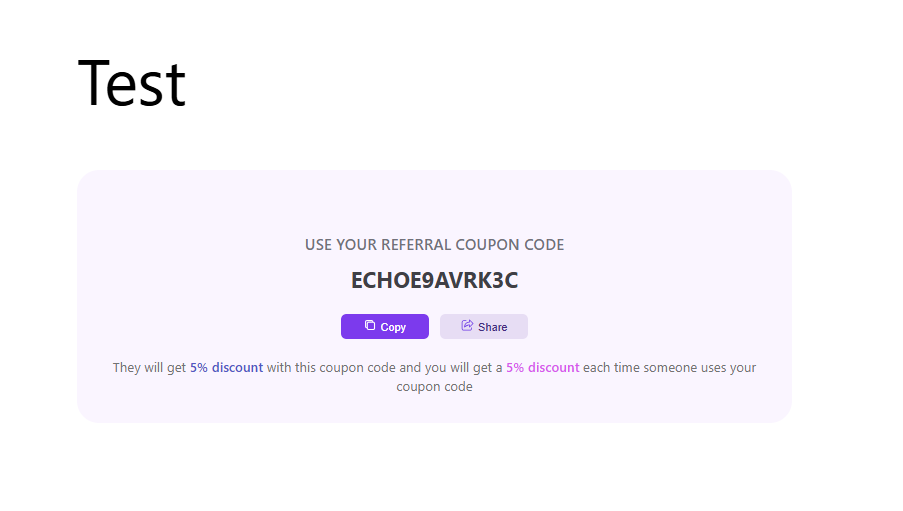
    Using EchoRewards Shortcode in Elementor: #

    Edit the post or page in Elementor where you want to add the shortcode.

    Search for the “Shortcode” widget from the Elementor panel. Drag and drop the “Shortcode” widget from the Elementor panel to the desired section of the page.
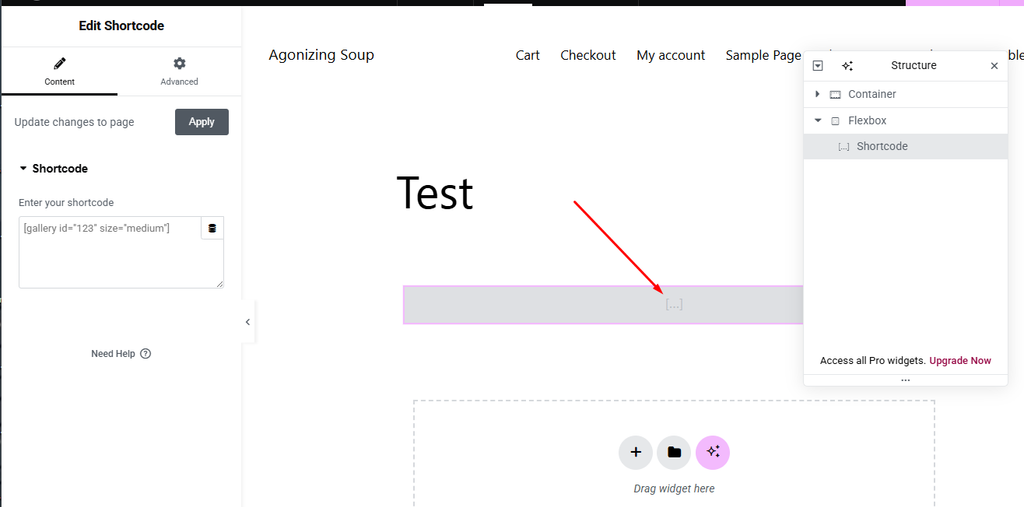
    Insert the copied EchoRewards shortcode into the “Shortcode” widget.
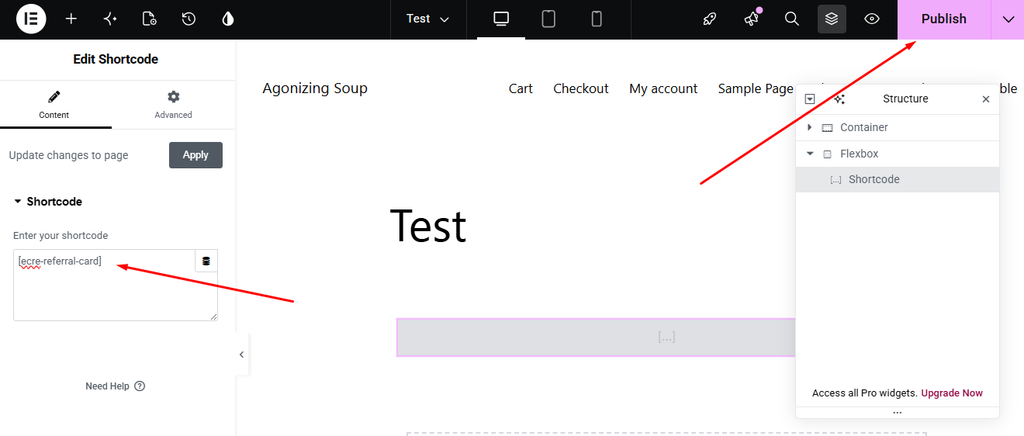
    Update the page to apply the changes. Insert the copied EchoRewards shortcode into the “Shortcode” widget.

    What are your Feelings

    Share This Article :

    • Facebook
    • X
    • LinkedIn
    • Pinterest
    Still stuck? How can we help?

    How can we help?

    Updated on August 31, 2026
    How to use EchoRewards Gutenberg block and Elementor referral widgetHow to use EchoRewards with WPFunnels & FunnelsKit
    Table of Contents
    • Using EchoRewards Shortcode in Gutenberg Block:
    • Using EchoRewards Shortcode in Elementor:

    Elevate your store with a dynamic and rewarding referral system!

    Logo
    • Home
    • Pricing
    • Docs
    • Support
    • Partners
    • Roadmap
    • Affiliates
    • Facebook
    • Twitter
    • Linkedin
    • Youtube
    WPPOOL Logo

    © 2026 WPPOOL. All Rights Reserved.

    ×
    00DAYS
    00HRS
    00MINS
    00SEC
    Grab Before It Melts 🧊